
To start using Credit Hound Cloud with Microsoft Dynamics 365 Business Central, you connect your Business Central company through the Add Company Wizard. Once connected, Credit Hound Cloud synchronises your customers and transactions automatically.
Before you start
Two things need to be in place. Both are done once and can be done in either order.
The Credit Hound Cloud extension is installed in the Business Central environment you want to connect. It is installed from Microsoft Marketplace (formerly AppSource) by someone by someone with permission to manage extensions in Business Central. See Installing the Credit Hound Cloud extension in Business Central.
A Microsoft 365 administrator has approved access for your organisation. They open the approval link, sign in, and select Grant Consent. They do not need a Credit Hound Cloud or Business Central licence. See Approving Credit Hound Cloud for your organisation.
Can be done in advance
Both tasks can be done in advance by your Business Central partner or IT team. If they have already been done, the Credit Hound Cloud Add Company Wizard goes straight through. If either is still missing, the wizard tells you and gives you the approval link to send on.
Start your free trial
If you do not yet have a Credit Hound Cloud account, start a free trial at https://register.credithoundcloud.com/BusinessCentral. This creates your account and takes you to Credit Hound Cloud.
Connecting Business Central to Credit Hound Cloud
Log on to Credit Hound Cloud at https://my.credithoundcloud.com
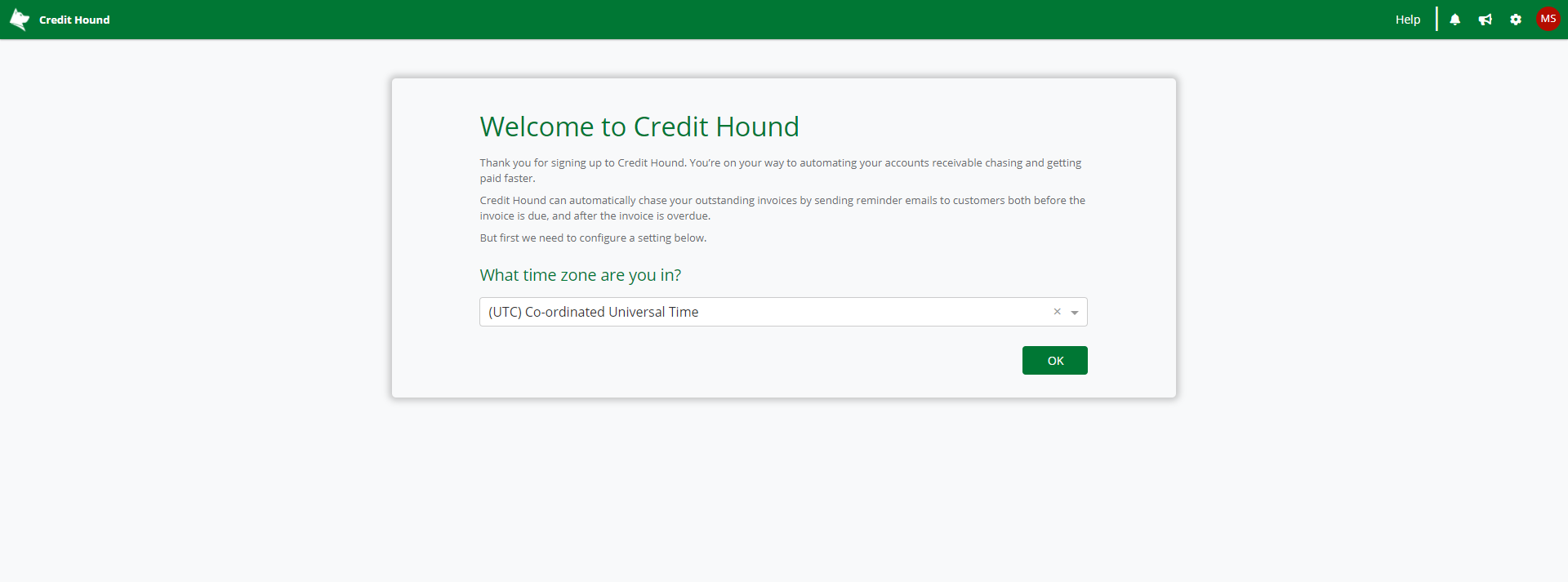
If this is your first time, you will see the Welcome to Credit Hound screen. Select your time zone and select OK
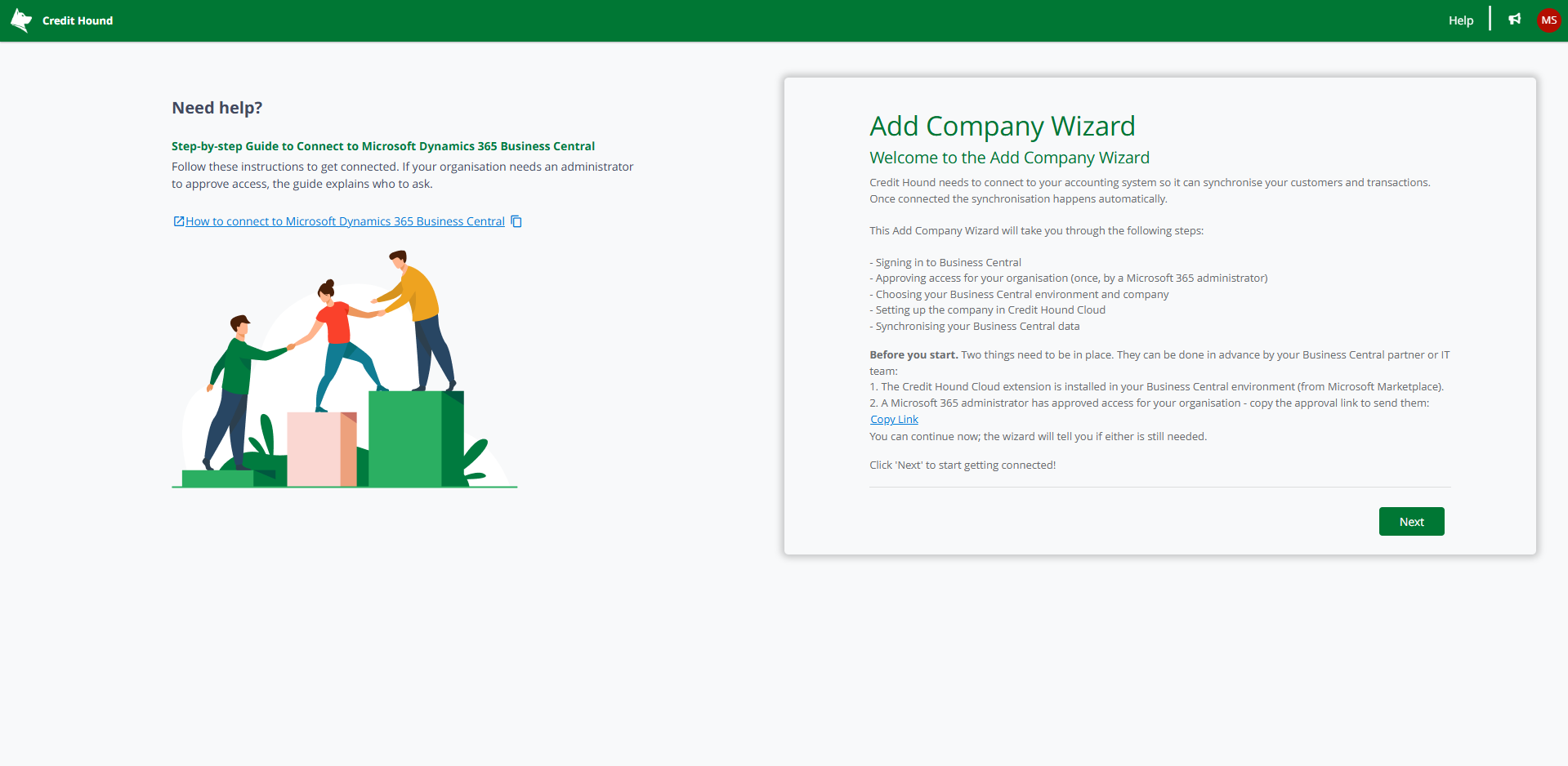
You will now see the Add Company Wizard. It lists the steps it will take you through and includes a Before you start box with the approval link. Select Next
Sign in to Business Central
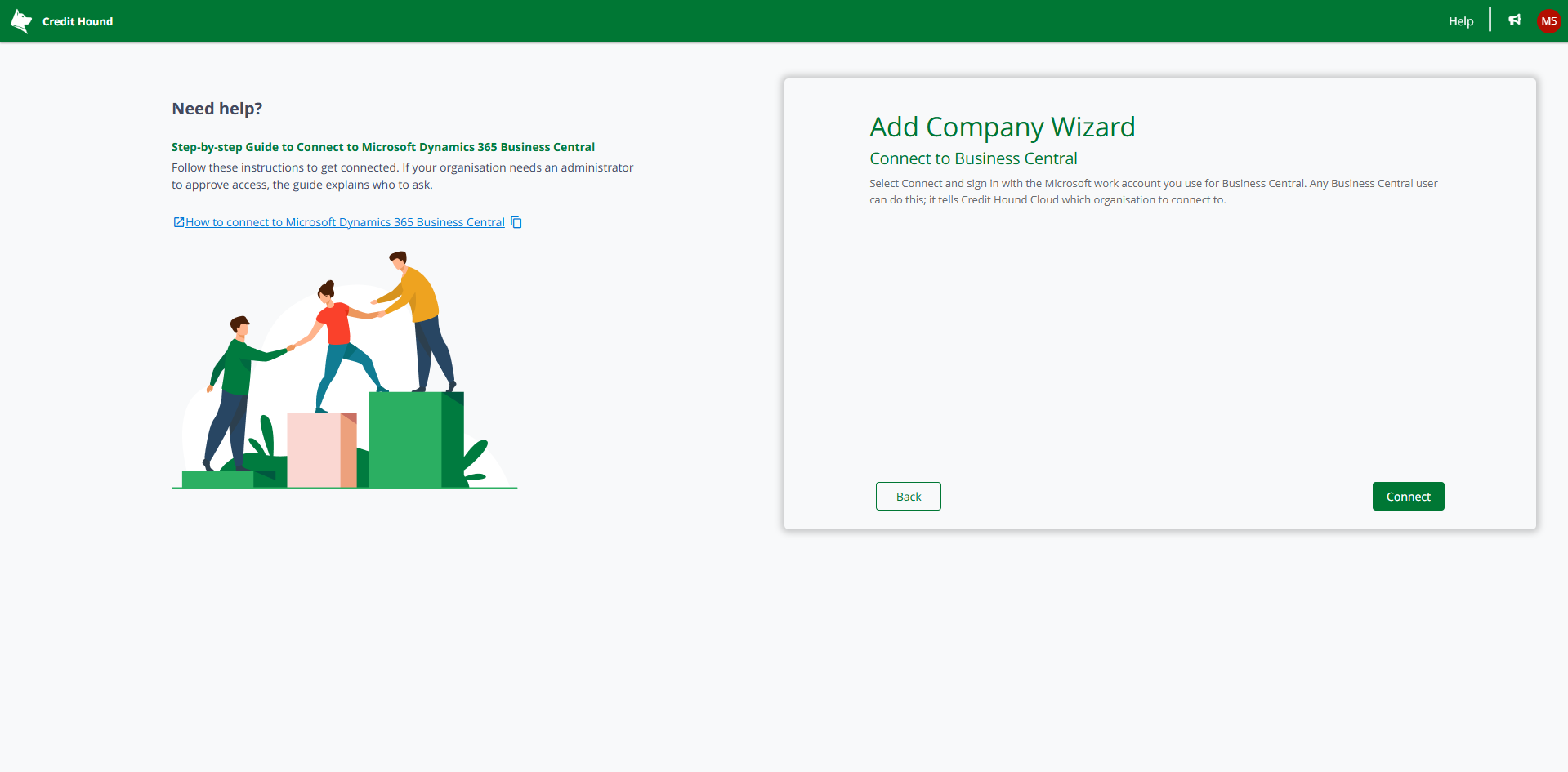
Select Connect
Sign in with the Microsoft work account you use for Business Central. Any Business Central user can do this: the sign-in tells Credit Hound Cloud which organisation to connect to
If Microsoft shows a Permissions requested screen for your own account, select Accept
Approve access for your organisation
You may not see this screen
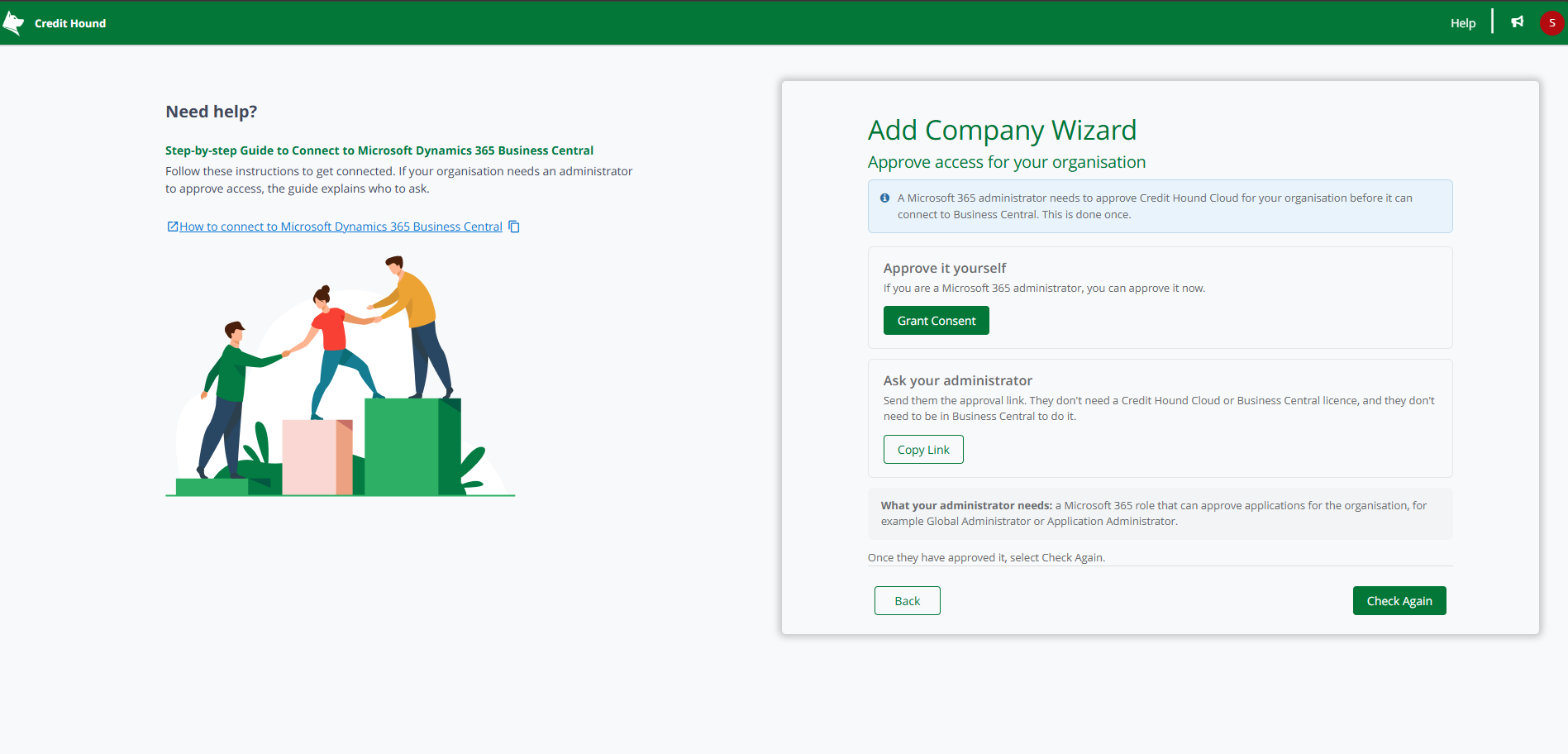
You will only see this screen if a Microsoft 365 administrator has not yet approved Credit Hound Cloud for your organisation. Approval is done once; nobody is asked again when further companies are connected.
If you are a Microsoft 365 administrator, select Grant Consent, sign in, and select Accept on the Microsoft screen
Otherwise, select Copy Link and send the link to your IT team or the partner who looks after your Microsoft 365. Once they tell you it is done, select Check Again
The approval is done once for your whole organisation. Nobody will be asked again, even if you connect more companies later.
Enter your Business Central environment
The Environment name suggests Production, which is the name most organisations use. If yours is named differently, or you are connecting a sandbox, enter that name instead. See Finding your Business Central environment name below
Select Next
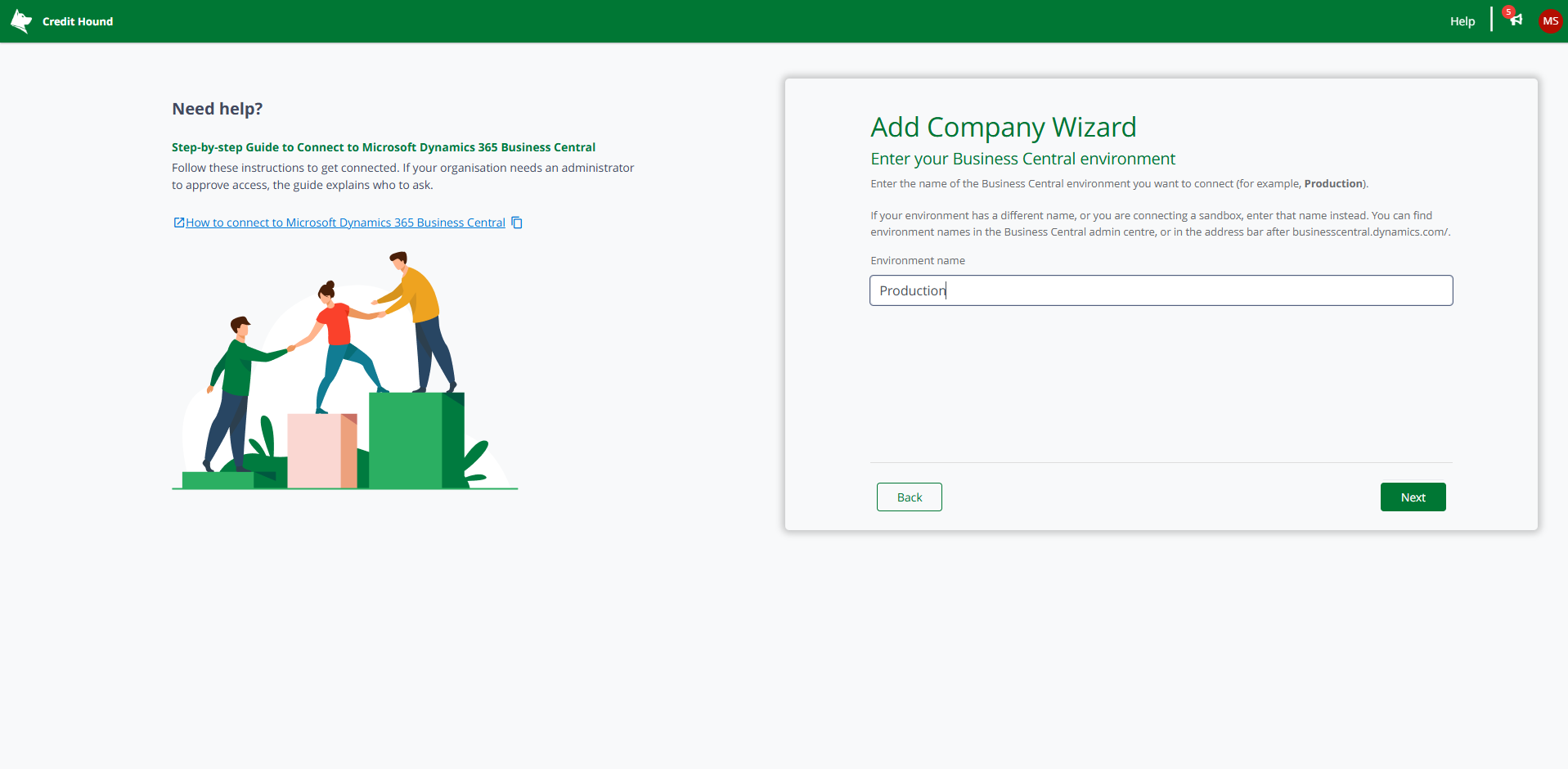
Finding your Business Central environment name
Most organisations have one production environment, and it is named Production unless someone renamed it when it was created. If you are not sure, there are two places to check:
From the address bar. Open Business Central in your browser. The address reads businesscentral.dynamics.com/, followed by your organisation, followed by the environment name, for example …/contoso.com/Production. The last part is the name to enter
From the admin centre. A Business Central administrator can open the Business Central admin center and view the Environments list, which shows every environment's name and whether it is Production or Sandbox
Enter the name exactly as it appears. If you are connecting a sandbox for testing, enter the sandbox's name instead, and remember the Credit Hound Cloud extension must be installed in that sandbox too.
Select company
Select the Business Central company to connect to Credit Hound Cloud
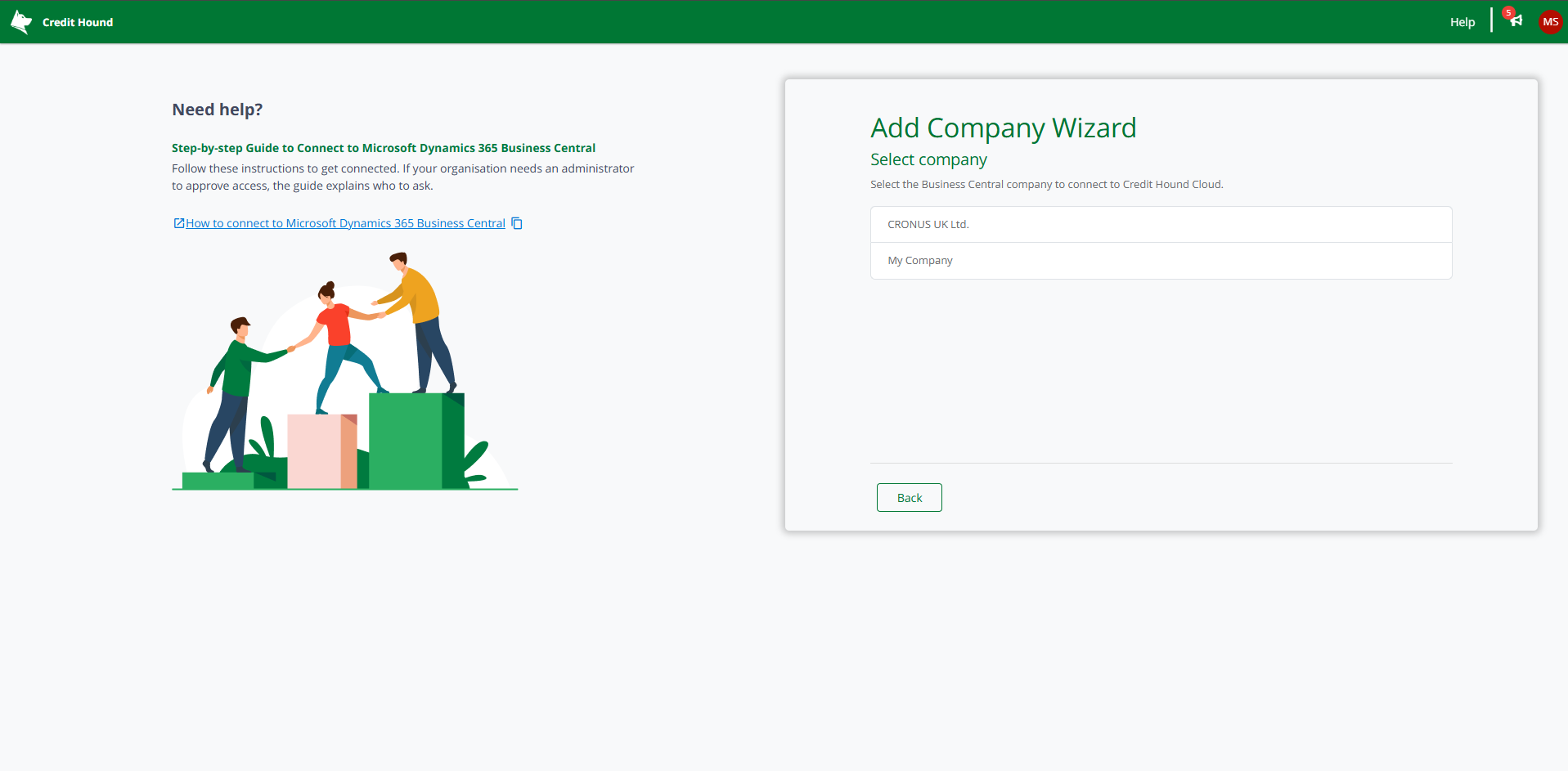
Check the company details
The company details are taken from Business Central. Check them, fill in anything missing such as email address, website or telephone, and select Next
.png)
The Add Company Wizard is now complete. You will be taken into Credit Hound Cloud and your data will begin to synchronise.
It may take some time for your data to synchronise. Give it a few moments and refresh the screen.
What happens next
Synchronisation runs automatically from now on. Nobody needs to be signed in for it to run
Automatic chasing is switched off to begin with: Collection Paths and Statements start toggled off, so nothing is sent to your customers until you turn them on
To connect another Business Central company, run the Add Company Wizard again. You will not be asked for approval a second time
Troubleshooting
The wizard says my organisation has not approved access, but IT say they have. Select Check Again. If it still shows, ask IT to confirm they approved it in the correct Microsoft 365 organisation, and that they used the Credit Hound Cloud link rather than a different app. See Approving Credit Hound Cloud for your organisation.
Microsoft shows “Need admin approval” when I sign in. Your organisation's Microsoft 365 settings require an administrator to approve applications before anyone can sign in to them. Send the approval link to your IT team; once they have approved it, sign in again.
We couldn't find a Business Central environment called … Check the spelling of the environment name. See Finding your Business Central environment name above
The Credit Hound Cloud extension isn't installed there. The extension is installed per environment. Ask your Business Central partner or administrator to install it in the environment you entered. See Installing the Credit Hound Cloud extension in Business Central.
I signed in with the wrong account. Select Back, then Connect again, and choose the work account you use for Business Central. If Microsoft signs you in automatically with the wrong account, open Credit Hound Cloud in a private browser window.