
Someone in your organisation is connecting Credit Hound Cloud, a credit control application from Draycir, to Microsoft Dynamics 365 Business Central. Before it can read Business Central data, a Microsoft 365 administrator must approve it for your organisation. This article explains what you are approving and how to do it. It takes about a minute and is done once.
What you are approving
Credit Hound Cloud synchronises customer and transaction data from Business Central on a schedule, so it needs to connect without a user being signed in. Microsoft requires an administrator to approve that kind of access for the whole organisation.
The approval is for Credit Hound Cloud, published by Draycir (a Microsoft verified publisher)
It covers Dynamics 365 Business Central only; it does not give access to email, files or other Microsoft 365 services
It applies to your organisation once. You will not be asked again when further Business Central companies are connected
You can review or remove it at any time in the Microsoft Entra admin centre under Enterprise applications
Who can approve
You need a Microsoft Entra role that can grant consent for the organisation: Global Administrator, Privileged Role Administrator, Cloud Application Administrator or Application Administrator. You do not need a Business Central licence or a Credit Hound Cloud account.
If you are a Business Central partner, you can approve on the customer's behalf only if you hold one of these roles in the customer's Microsoft 365 organisation.
Approve using the link
The person setting up Credit Hound Cloud will have sent you a link.
Open the link. You will see the Credit Hound Cloud approval page
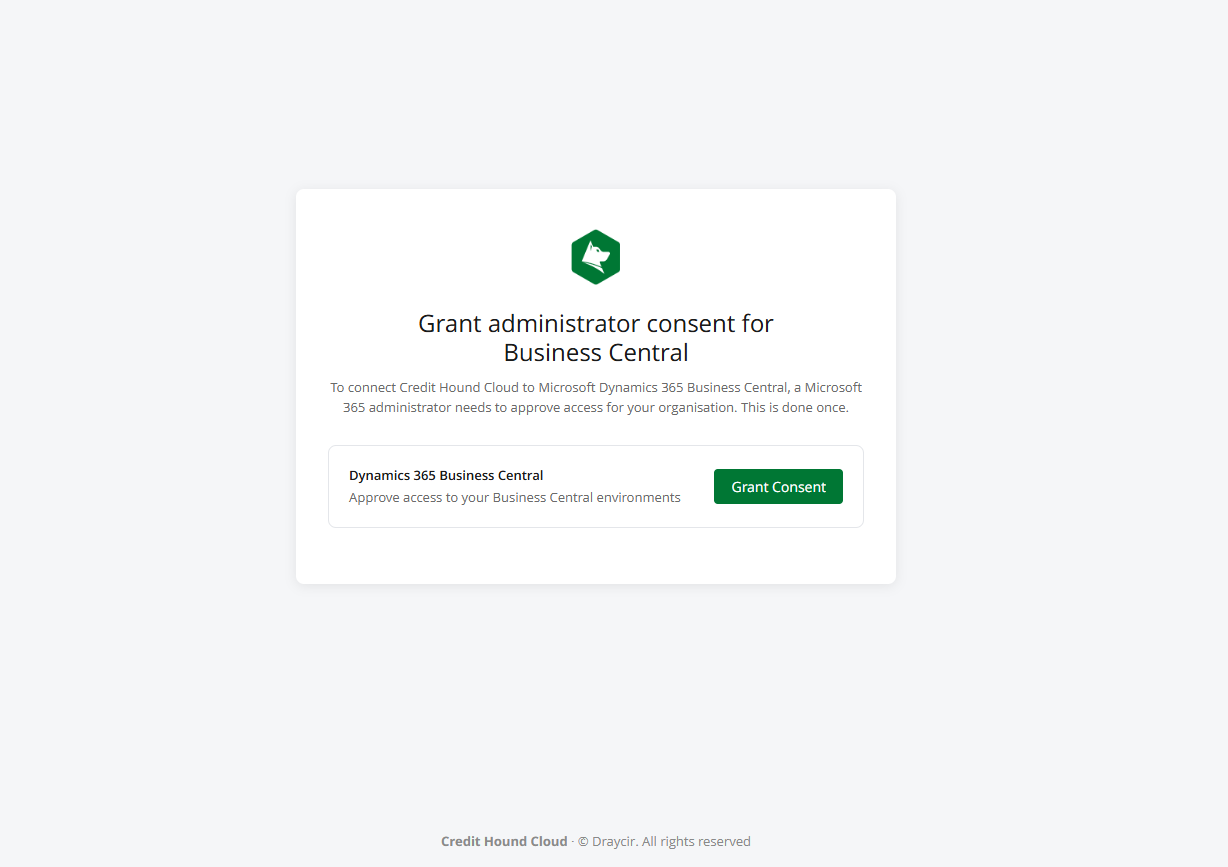
Select Grant Consent
Sign in with your administrator account
Microsoft shows a Permissions requested screen headed Review for your organization. Review it and select Accept
You will see Access granted. You can close the tab
Let the person setting up Credit Hound Cloud know it is done. In the wizard they select Check Again and continue.
Approve from inside Business Central instead
If you are already in Business Central (for example, you have just installed the Credit Hound Cloud extension) you can approve from there. The result is identical; do one or the other, not both.
In Business Central, search for Microsoft Entra Applications and open it
Open the entry named Credit Hound Cloud (it is created when the extension is installed)
Select Grant Consent and sign in with your administrator account
Select Accept on the Microsoft screen
This route additionally ticks the Permission Granted field on the card. Approval through the link does not, which is expected; the field is informational only.
What the Microsoft screen shows
The Microsoft screen lists the permissions Credit Hound Cloud is requesting. For Business Central the application permission is shown as read and write access, because Business Central does not offer a read-only permission for applications that connect in the background. Credit Hound Cloud uses it to read customer, invoice and ledger data; it does not create or change records in Business Central.
Why the screen says read and write
Microsoft’s screen lists the permission as read and write access. Business Central does not offer a read-only permission for applications that connect in the background, so this is the narrowest permission available. Credit Hound Cloud uses it to read customer, invoice and ledger data; it does not create or change records in Business Central.
Troubleshooting
Microsoft shows “Need admin approval” instead of the permissions screen. The account you signed in with does not hold one of the roles above. Select Have an admin account? Sign in with that account and use one that does.
I approved it but the wizard still says approval is needed. Ask the person running the wizard to select Check Again. If it persists, check you approved in the same Microsoft 365 organisation the Business Central environment belongs to; organisations with more than one tenant sometimes approve in the wrong one.
I want to remove the approval later. In the Microsoft Entra admin centre, go to Enterprise applications, open Credit Hound Cloud, and remove it under Permissions. Credit Hound Cloud will stop synchronising until it is approved again.
Our organisation blocks users from consenting to applications. That setting does not affect this approval, which is an administrator action. It may mean the Credit Hound Cloud user sees "Need admin approval" when they first sign in; once you have approved Credit Hound Cloud, their sign-in will work.