
A Statement shows your customer the outstanding transactions on their account. This article explains which transactions appear, how the total is calculated, and how the inclusion options affect what your customer sees.
What 'outstanding' means
A transaction is outstanding when it hasn't been fully allocated or paid in your accounting system. Statements only show outstanding transactions - fully paid invoices, fully allocated credit notes, and historic transactions don't appear.
Unpaid invoices and the unpaid portion of partially paid invoices always appear alongside other balance increasing transactions, e.g., finance charges, debit notes, and similar transactions from your accounting system that increase the customer's balance.
Transactions you can choose to include
The 'What to include' section of the Statement configuration has three checkboxes that control which additional transactions appear.
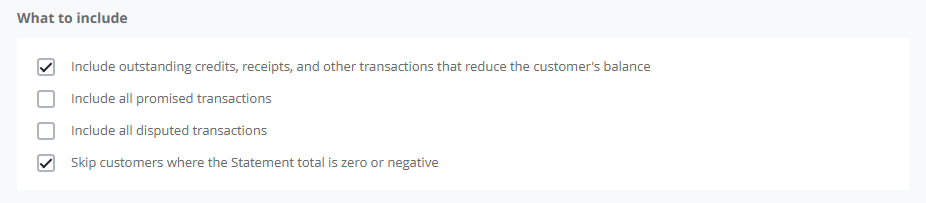
Include outstanding credits, receipts, and other transactions that reduce the customer's balance
Default: On
When enabled, the Statement shows:
Credit notes - credit notes the customer has not yet applied to invoices
Unallocated receipts - payments the customer has made that have not yet been matched against an invoice
Other balance-reducing transactions - transactions from your accounting system that reduce the customer's balance
These transactions appear in the table and are subtracted from the total, giving your customer the full picture of their account.
Include all promised transactions
Default: Off
When enabled, transactions where the customer has promised to pay by a specific date are included in the Statement. When disabled, promised transactions do not appear, even if they are outstanding.
This is off by default because promised transactions are usually negotiated arrangements between you and the customer, and surfacing them on a routine statement can complicate the conversation.
Include all disputed transactions
Default: Off
When enabled, transactions the customer has disputed are included in the Statement. When disabled, disputed transactions do not appear.
This is off by default because including disputed transactions on a statement can interfere with the dispute resolution process.
Disputed transactions are not labelled
When you include disputed transactions, they appear in the table alongside other transactions without a visual marker indicating they are in dispute. Consider this when deciding whether to enable this option, particularly for customers with active disputes.
How the total is calculated
The 'Total' row at the bottom of the transaction table shows the sum of all transactions in the Statement. The total always matches what's shown in the table:
Balance increasing transactions (invoices, refunds, finance charges) add to the total
Balance reducing transactions (credit notes, unallocated receipts) subtract from the total - when they are included
Promised and disputed transactions are part of the total when their respective checkboxes are enabled
If a transaction appears in the table, it counts towards the total. If a transaction does not appear, it does not contribute to the total.
Skipping customers where the Statement total is zero or negative
The 'Skip customers where the Statement total is zero or negative' option (on by default) prevents customers whose total Statement balance is zero or in credit from receiving a Statement.
This means a customer whose payments have fully covered their outstanding balance will not receive a statement that month. Similarly, a customer who has only unallocated credits on their account will not receive a statement showing a negative total.
If you turn this option off, customers with a zero or negative balance will still receive a Statement showing their account state.