
Analysis Codes allow you to bring additional customer-level information from your Sage 200 Professional into Credit Hound Cloud. These fields can then be displayed, sorted, and filtered to help segment customers and create targeted Collection Paths.
Analysis Codes in Credit Hound Cloud are read-only and reflect the values stored in your accounting system.
How Analysis Codes Work
Analysis Codes are defined in Sage 200 Professional
Available codes are synced into Credit Hound Cloud
You select which codes to use in Company Settings
Values are synced and displayed against customers
Configuring Analysis Codes
This area allows you to configure Analysis Codes and synchronise analysis code values into Credit Hound Cloud.
Number of Analysis Codes
You can add up to 10 Analysis Codes in Credit Hound Cloud.
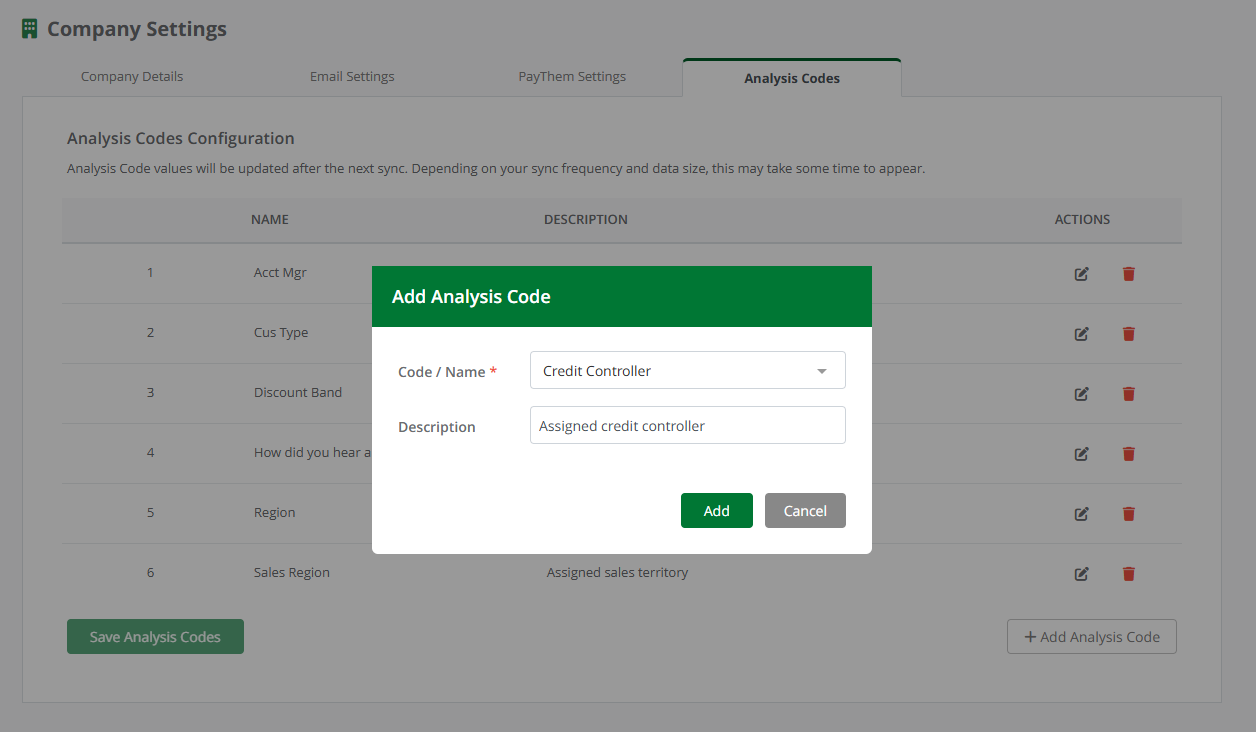
Add Analysis Code
Go to Company Settings.
Open the Analysis Codes tab.
Click + Add Analysis Codes.
From the dialog select a Code / Name from the dropdown list. These are synced from the Sage 200 Professional Sales Ledger.
(Optional) Enter a description.
Click Add.
Repeat for each Analysis Code you want to sync.
Once you have added your Analysis Codes, click on the Save Analysis Codes button.
Analysis Code Values Synchronisation
Once the configuration has been saved, Analysis Code values will be updated after the next sync from Sage 200 Professional via the Credit Hound Connector Agent.
Depending on your dataset size, updates may take several minutes to appear across the Customer and Aged Receivables lists.
Editing or Removing Analysis Codes
Use the icon to edit the name or description.
Use the icon to remove an Analysis Code.
Changes take effect after saving and synchronising.
Configuration Columns
Column Name | Description |
|---|---|
Name | The name of the Analysis Code, pulled from Sage 200 Professional. This comes directly from Sage 200 Professionalso cannot be changed. |
Description | An optional description. |
Actions | Here you can click the buttons to Edit or Remove a configured Analysis Code. |
Using Analysis Codes
Analysis Codes appear in the Customer List and Aged Debt List and can be used to enhance filtering, segmentation, and customer management. Use the Columns button to add the configured Analysis Code columns to the lists.
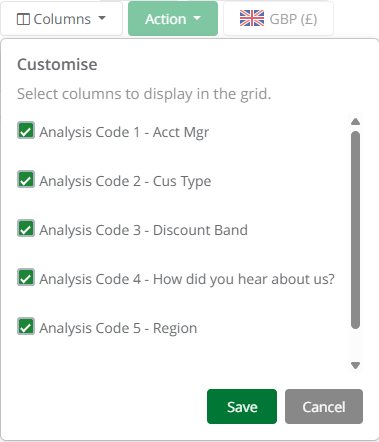
Add Columns
Customer List
Analysis Codes can be added as columns to the Customer List.
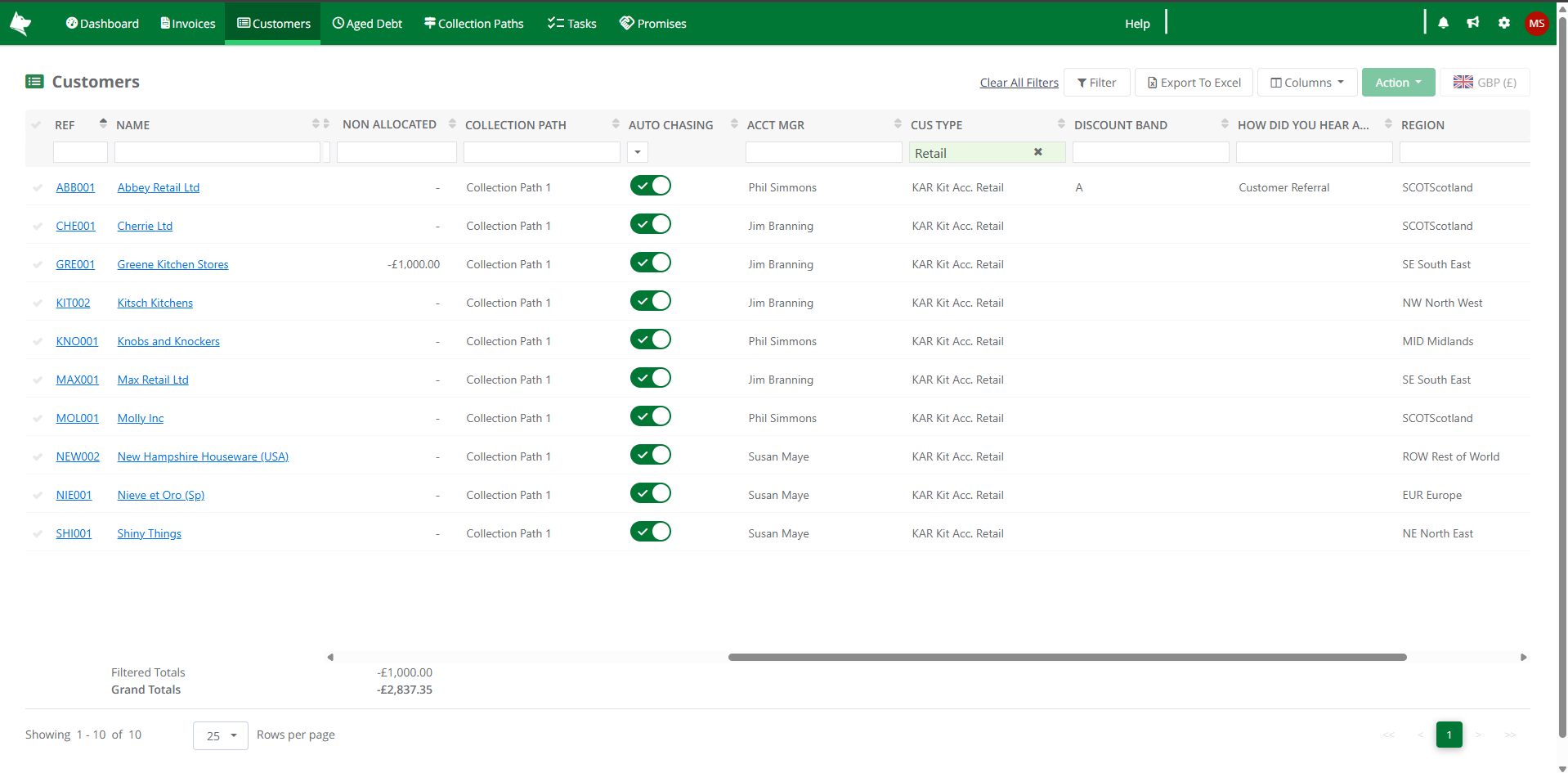
Customer List - Analysis Codes
Columns can be shown or hidden using the Columns button.
Supports sorting and filtering
Helps you segment customers before assigning Collection Paths.
The data can be exported to Excel for offline reporting or analysis.
Aged Debt List
Analysis Codes can also be added to the Aged Debt List.
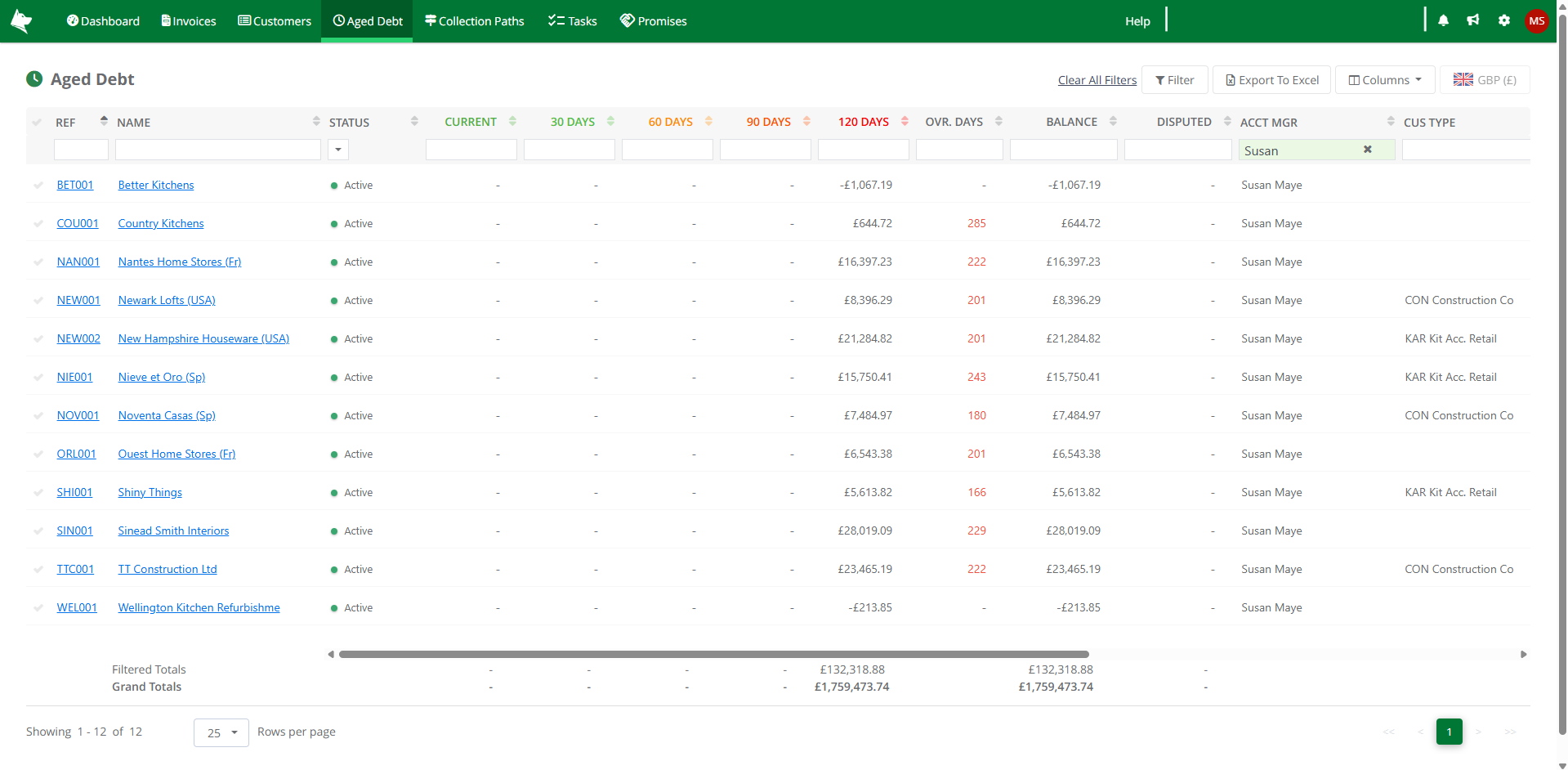
Aged Debt List - Analysis Codes
Columns can be shown or hidden using the Columns button.
Provides additional context when reviewing overdue accounts.
Enables filtering for more targeted credit control activity.
The data can be exported to Excel for further analysis.
Read-only values
Analysis Code values are read-only in Credit Hound Cloud. To update a value, make the change directly in Sage 200 Professional’s customer record.
Analysis Codes make it easier to organise and prioritise your credit control activities. Common uses include:
Bulk-assign Customers to Collection Paths
Filter customers in the Customer List by an Analysis Code then apply a Collection Path to all selected customers at once.
Filter by Sales Region for regional chasing
Ideal for teams where collectors are assigned to specific regions.
Example - You could use an Analysis Code such as:
Customer Type (Retail, Distributor, Trade)
You can then:
Filter customers where Customer Type = Distributor
Assign a specific Collection Path for those customers
These examples illustrate how Analysis Codes can streamline segmentation and improve the efficiency of your credit control process.