
The synchronization of data from your accounting system into Credit Hound Cloud is important as without the latest accounting data, Credit Hound Cloud could chase invoices that have already been paid. This article talks you through the steps to take to troubleshoot and resolve synchronisation issues.
Check When Your Data Last Synchronised
The date and time of the last successful synchronisation is displayed at the top of every page in Credit Hound, next to your company name.
 The Last Sync time is shown in the top bar next to your company name
If the Last Sync time is recent but your data still looks wrong, this points to a data discrepancy rather than a connection problem.
Follow the troubleshooting steps for your accounting system type.
On-premise Accounting Systems
On-premise based accounting systems use the Credit Hound Connector Agent. These accounting systems are:
- SYSPRO
- Sage 50 Accounts UKI
- Sage 50 Accounting - US Edition
- Sage 50 Accounting - Canadian Edition
- Sage 100
- Sage 200 Professional
Restart the Draycir Credit Hound Connector Windows Service
Restarting the connector service resolves the majority of synchronisation issues and is the first thing to try.
- On the server where the Credit Hound Connector Agent is installed, click Start, type Services, and click the Services app (you can also run services.msc from the Run dialog).
- Locate the services named Draycir Credit Hound Connector_ followed by a long reference number. There is one service for each connected company, and the description reads "The on-premises connector integrates the accounting system with Credit Hound."
- Check the Status column for each of these services
- If the status is Running, right-click the service and click Restart
- If the status is blank or Stopped, right-click the service and click Start
- Wait for the next synchronisation interval, then check whether your data has updated
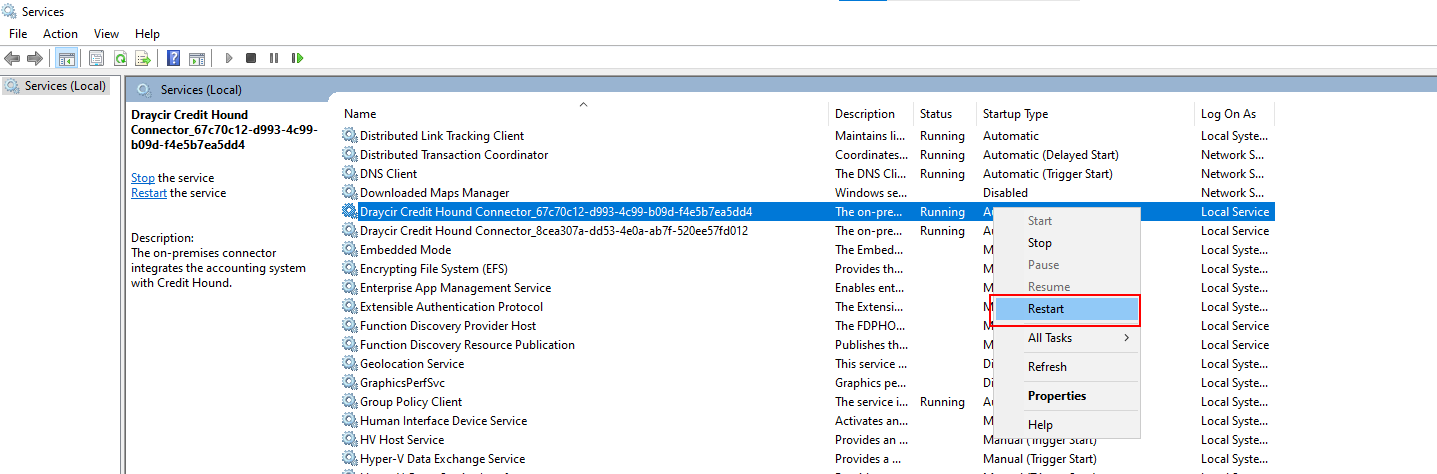 Restarting the Credit Hound Connector Service in Windows Services
Refresh Login Credentials
You may need to re-enter your login credentials for your connected company in the Credit Hound Connector Agent.
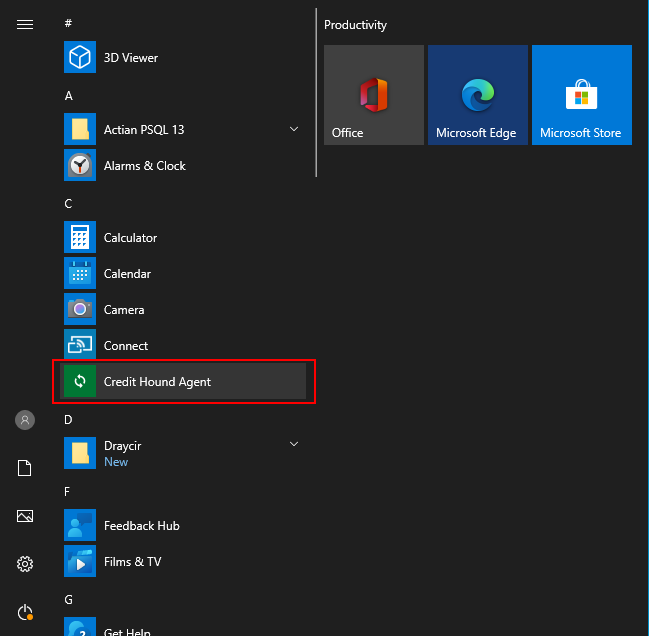 Launching the Credit Hound Agent from the Start Menu
Please launch the Credit Hound Agent from your Start Menu.
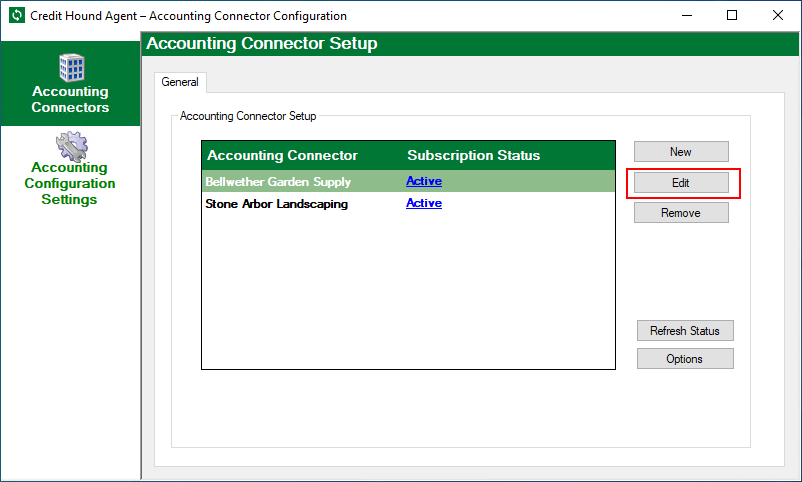 Selecting your company and clicking Edit
- Once in, go to Accounting Connectors and select your company
- Click Edit
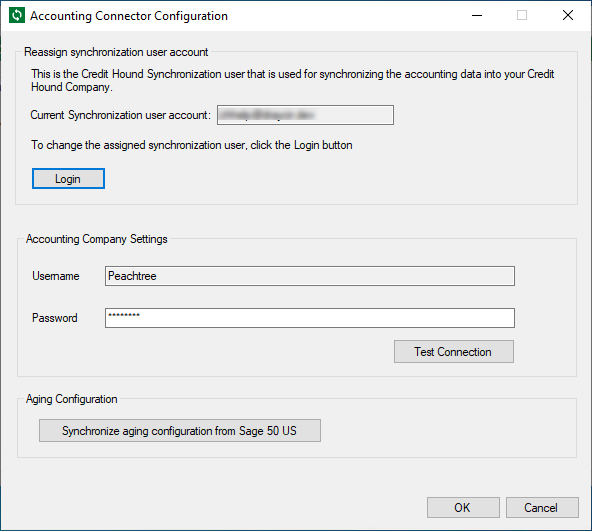 The Accounting Connector Configuration screen
 - Click Login
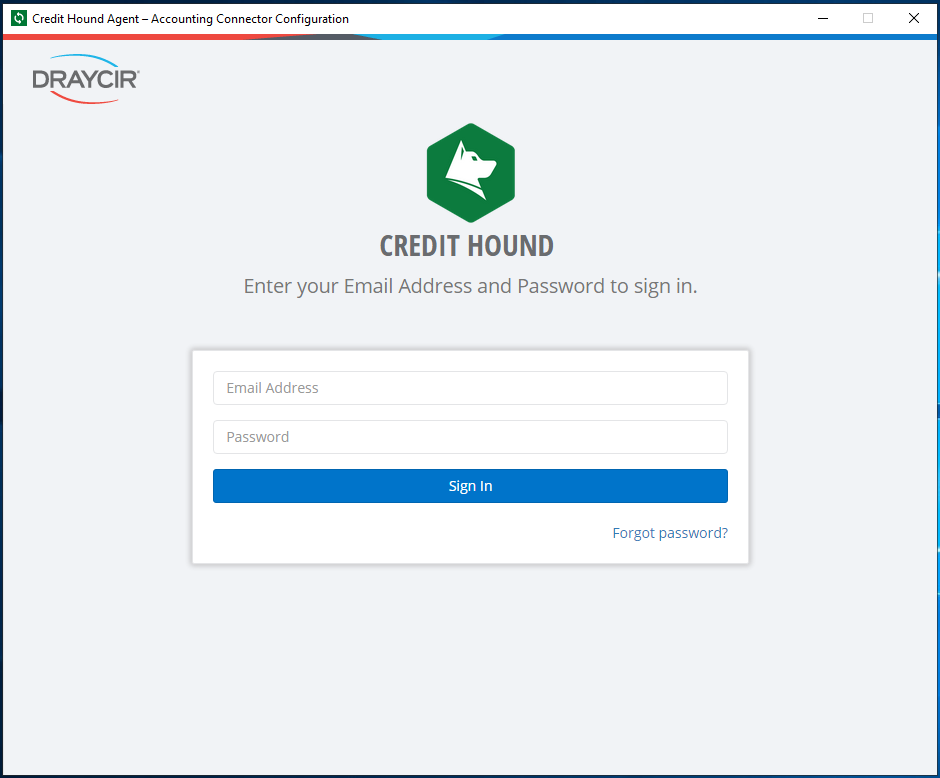 Signing in to Credit Hound Cloud from the Agent
 - Re-enter the email address and password you used to sign up to Credit Hound and click Sign In
This will refresh your connection to Credit Hound.
Balance or Data Discrepancies
If the data in Credit Hound does not match your accounting system — for example customer balances are out of date, or transactions are missing — perform a Full Sync. A normal synchronisation only sends tracked changes, whereas a Full Sync sends all data.
- Launch the Credit Hound Agent from your Start Menu
- Go to Accounting Connectors and select your company
- Click Options
- Click Full Sync
- Click Close
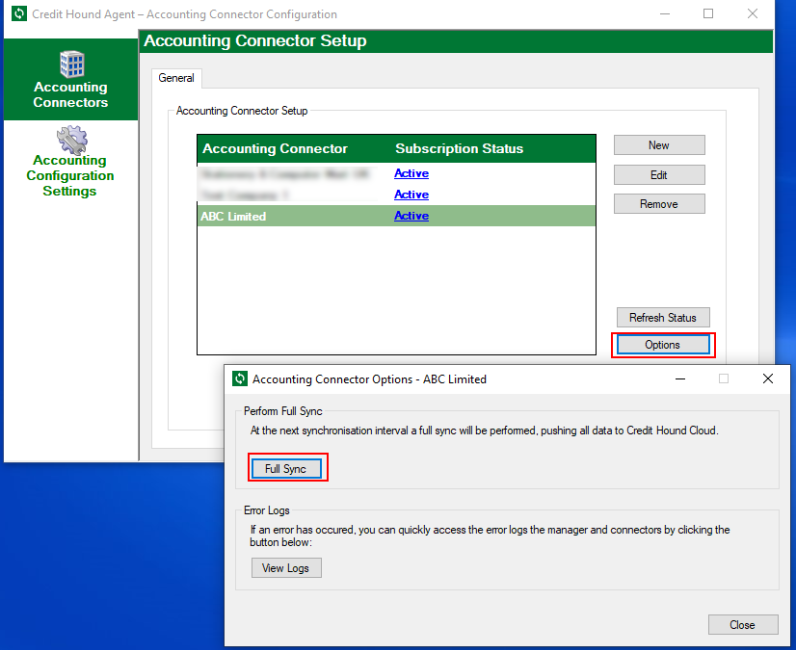 Performing a Full Sync from the Accounting Connector Options window
If a Full Sync does not resolve the discrepancy
The Options window also contains a View Logs button, which opens the log files for the Agent manager and connectors.
Click View Logs, locate the most recent entries, and attach them to a support ticket at support@draycir.com along with an example of the affected customer or transaction. Alternatively, navigate to C:\ProgramData\Draycir\Credit Hound Cloud\Agent\Logs to retrieve the log files.
Duplicate Transactions
If you are seeing duplicate transactions on an on-premise connector, check whether the Credit Hound Connector Agent has been installed on any other computer. Uninstall the Agent from every machine except your server, then perform a Full Sync using the steps above.
Please contact us at support@draycir.com if you have duplicate transactions in your Credit Hound Cloud dataset.
Sage 50 US - Upgrade
When upgrading your Sage 50 US system, sometimes the Access From Outside Sage 50 Peachtree password gets reset to the option ‘None’. If this happens, Credit Hound will be unable to communicate with the Sage 50 US data.
- To resolve this, please select With the following login information and ensure a suitable password is set.
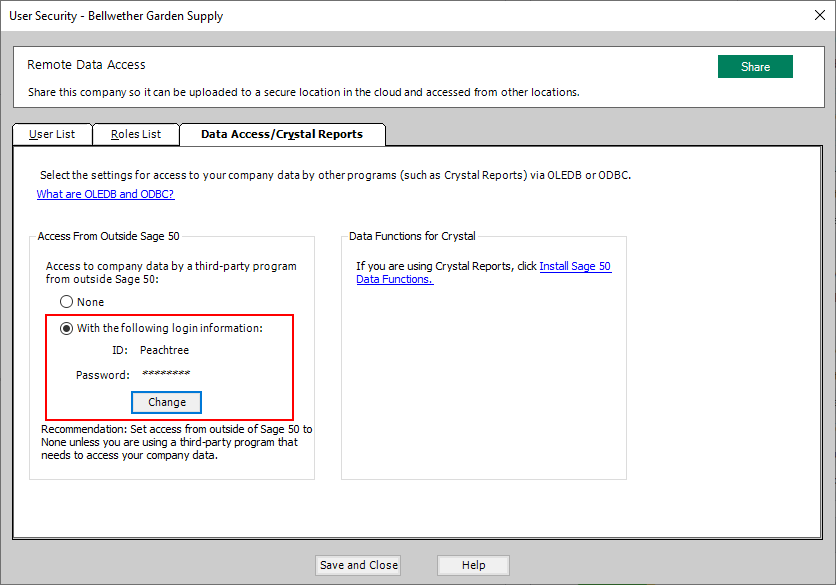 Setting the Access From Outside Sage 50 password
 If you do change the password after the upgrade, ensure you update this password in the Credit Hound connector
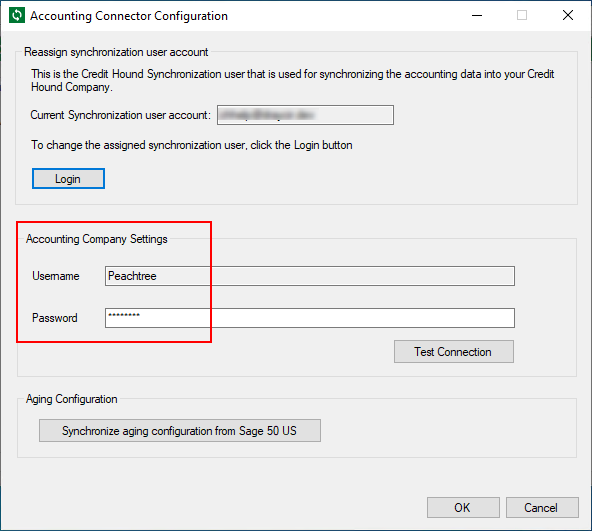 Updating the accounting system password in the Agent
 - Once in, go to Accounting Connectors and select your company
- Click Edit
- Under Accounting System Settings, update the password and click Test Connection followed by OK.
See the help section, Configure Sage 50cloud Accounting, for further details.
Cloud-based Accounting Systems
Follow these sync troubleshooting steps for cloud Accounting Systems like Sage Business Cloud Accounting or Sage Intacct.
Refresh Login Credentials
If you recently changed your login credentials, you will also need to update these in Credit Hound. You can visit the Company Settings page to update your login credentials.
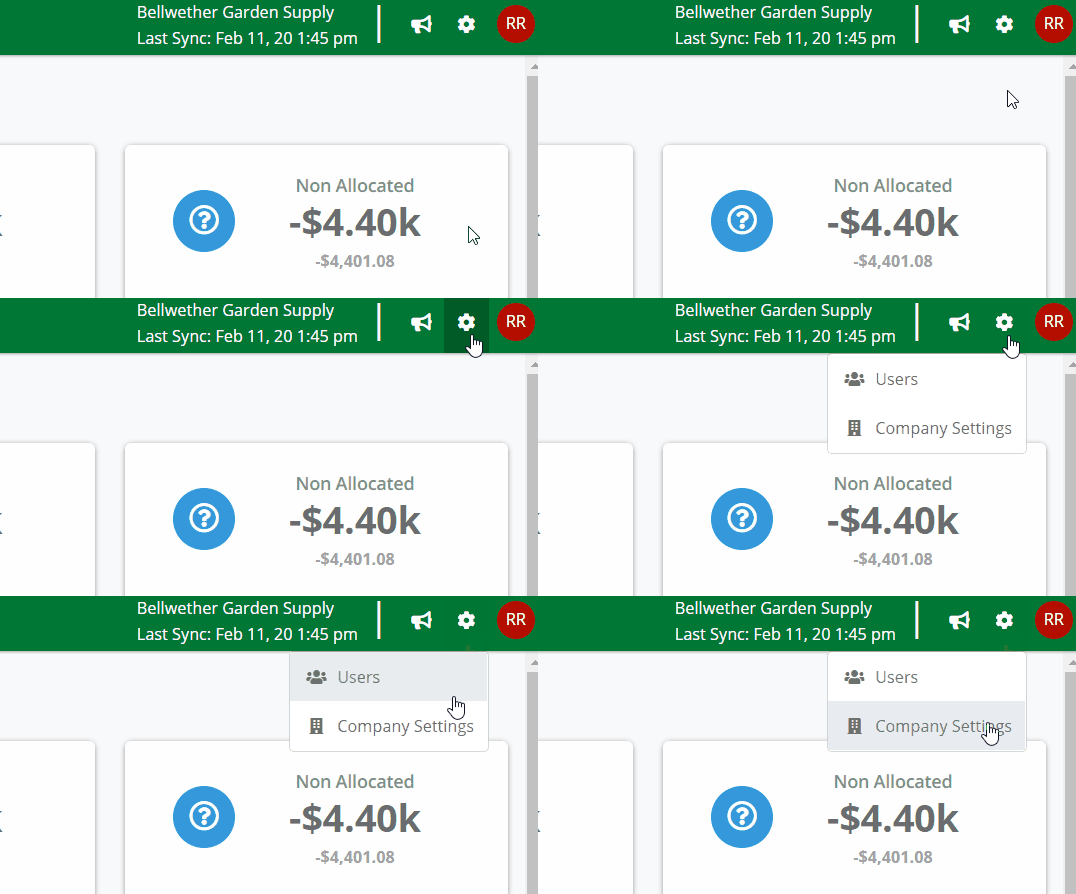 How to get to Company Settings
Company Settings can be found under the Settings cog icon in the top-right hand corner of the screen. Click on the icon and when the menu appears click on Company Settings.
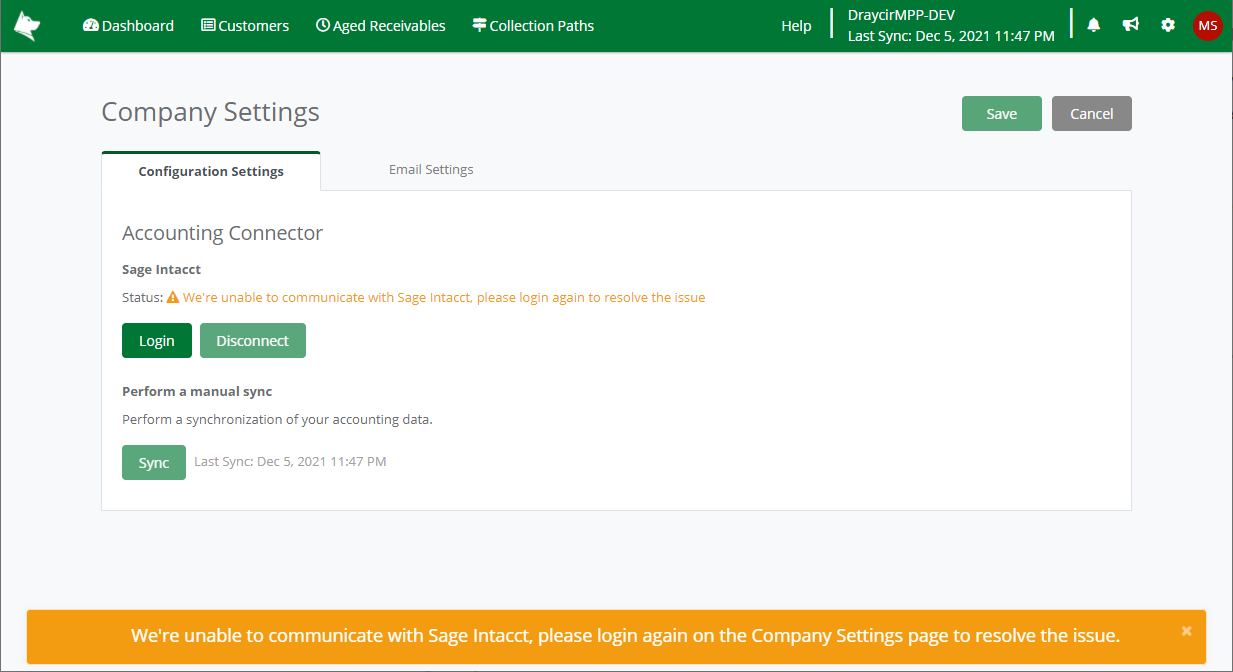
Once there, check your Accounting Connector status and click Login.
Sage Intacct
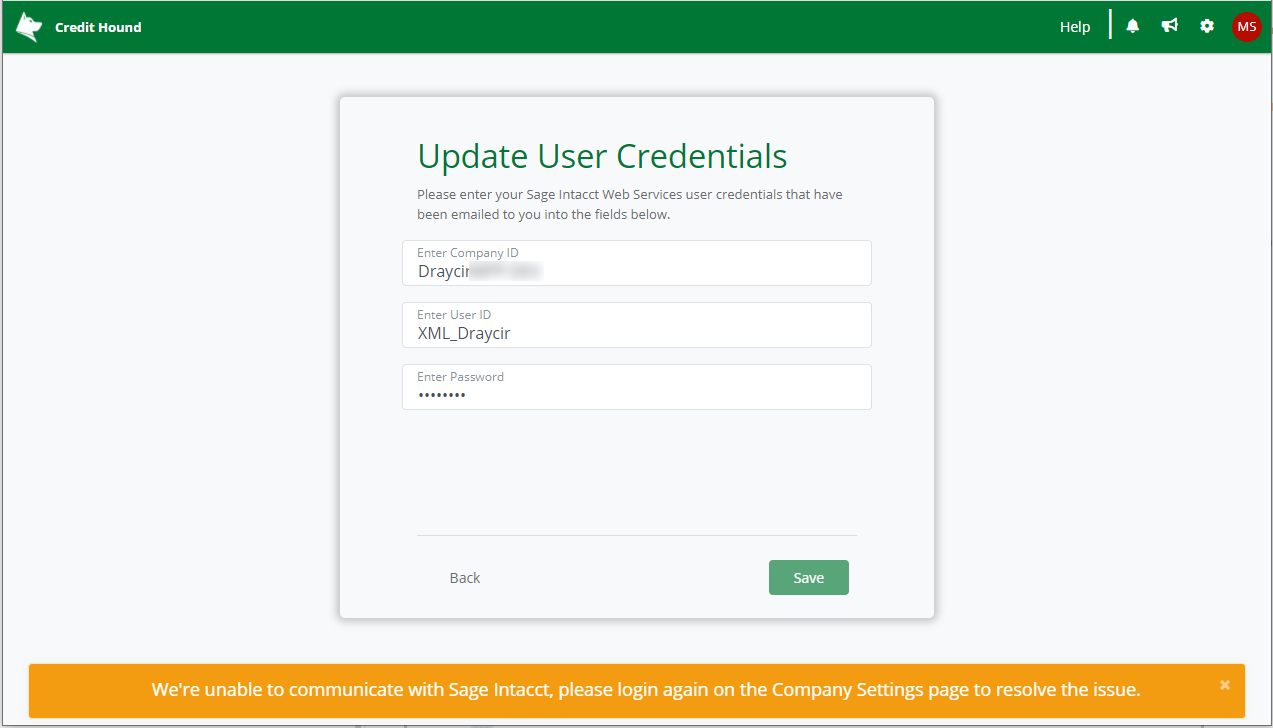 Sage Intacct User Credentials
Update your User Credentials and click Save.
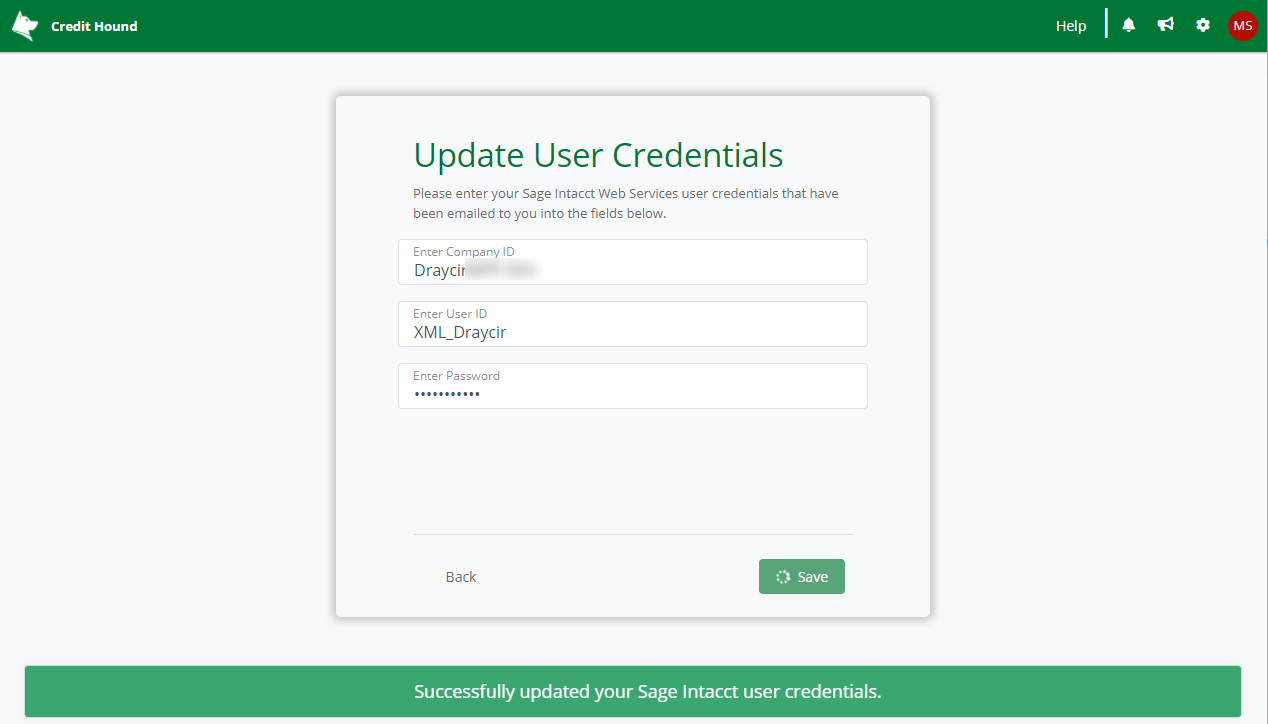 Credentials updated successfully
 The credentials will be updated and you will be redirected back to the Company Settings page.
Sage Business Cloud Accounting
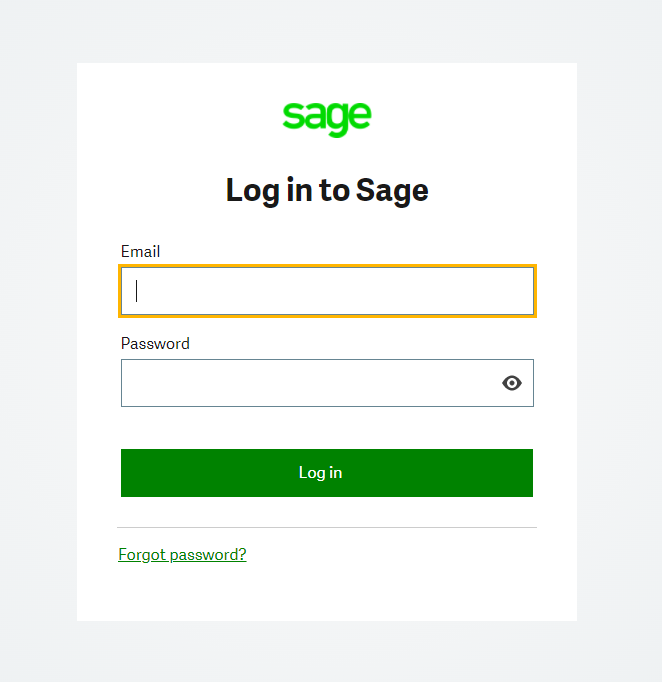 Sage Business Cloud Accounting user credentials
 Update your User Credentials and click Save.
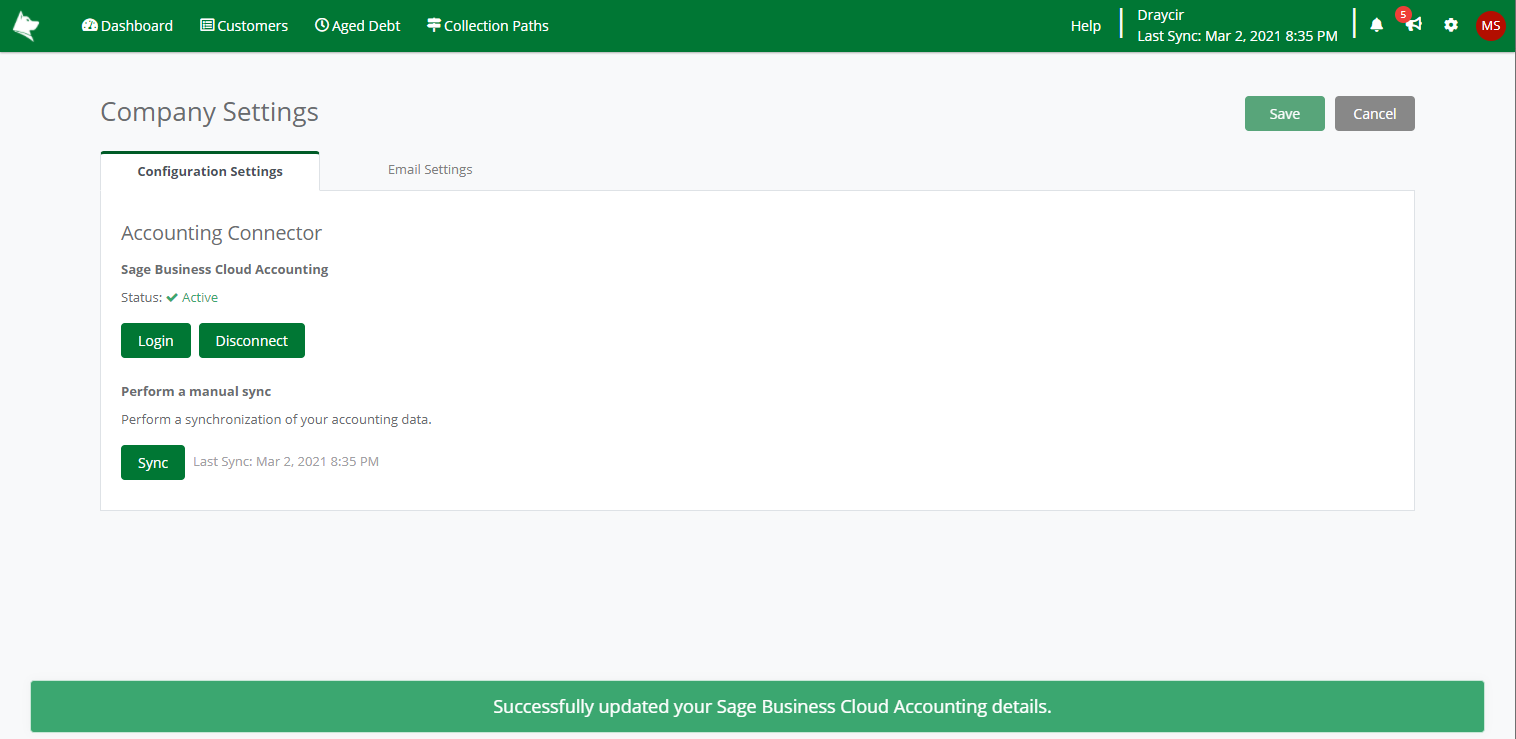 Credentials updated successfully
 The credentials will be successfully updated and you will be redirected back to the Company Settings page.
Perform a Manual Sync
If your data in Credit Hound does not match your accounting system, you can trigger a synchronisation manually rather than waiting for the next scheduled one.
- Go to Company Settings (Settings cog, top right)
- Under Perform a manual sync, click Sync
- The Last Sync time will update once the synchronisation completes